 OPNsense
Download and Install
OPNsense
A clear, independent guide to downloading, installing, and setting up OPNsense on real hardware or in a virtual machine.
Download OPNsense
Get the official OPNsense installer image here, served directly from the project release server.
You will download: OPNsense-26.7-vga-amd64.img.bz2 (493.9 MB, Community Edition 26.7, amd64)
Verify your download: SHA256 checksums · checksum signature · release public key

What is OPNsense?
A powerful, open source firewall and routing platform with a web interface for managing your network.
It is built on FreeBSD and combines a stateful firewall with routing, VPN servers, intrusion detection and prevention and traffic shaping. The Community Edition covered on this page is a free firewall for home networks and small businesses.

Check your hardware
Choose hardware that suits your network and services.
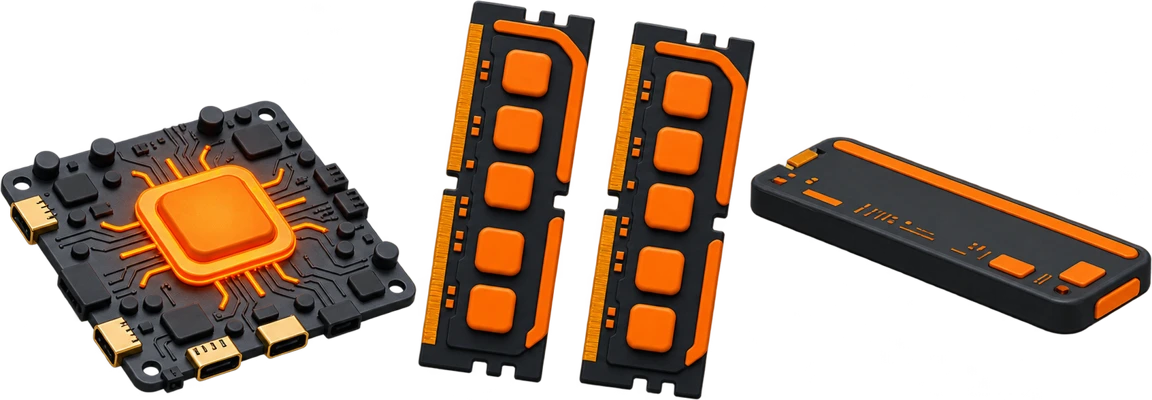
The official sizing guide sets a minimum of a dual-core 1 GHz CPU with 3 GB of RAM, a reasonable baseline of 4 GB of RAM with a 40 GB SSD, and a recommended build of 8 GB of RAM with a 120 GB SSD for heavier services such as intrusion prevention.
Compare installer images
Choose the installer that matches your environment and console access method.
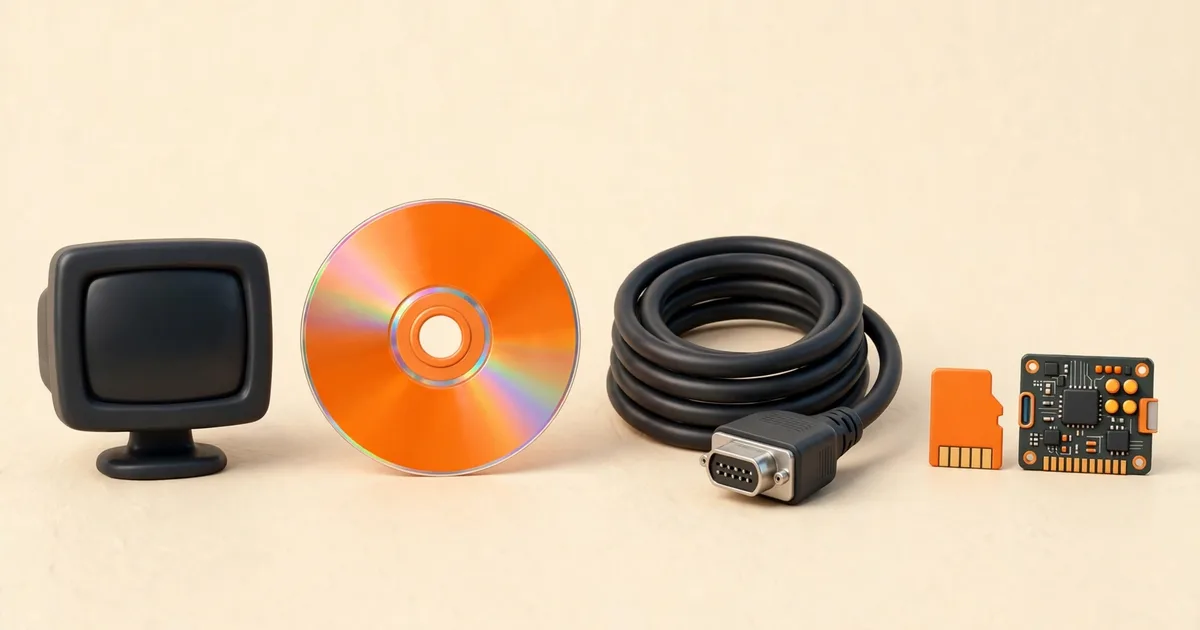
All four images install the same OPNsense system. They differ only in how you watch the installation: a local screen, a virtual machine console, a serial cable, or preinstalled embedded media.
| Image | Best for | When to use |
| VGA | Physical hardware | USB boot with a local monitor |
| DVD | Virtual machines | Attach an ISO to a virtual optical drive |
| Serial | Headless systems | Use a serial console |
| Nano | Embedded systems | Write a preinstalled image to media |
Before you install
A quick check to avoid common issues during installation.
Five minutes here prevents most failed installs, so work through this list before booting the installer.

Verify your download
Compare your file with the official SHA256 checksum.
Two checks are better than one. The checksum proves the downloaded file is identical to the released file, and the OpenSSL signature proves the checksum file itself came from the project. The verifier below hashes the file locally in your browser, and nothing is uploaded.

Prepare a USB drive
Write the downloaded image to a USB drive to create a bootable installer.
Decompress the .bz2 file first unless your writing tool handles it directly, then write the raw image to the whole drive rather than to one partition. Copying the file onto a formatted stick in a file manager does not make it bootable.
- Extract the downloaded installer image.
- Choose the correct USB device.
- Write the image and safely eject the drive.

Install on a mini PC
Install OPNsense on a fanless mini PC for a quiet, low-power firewall.
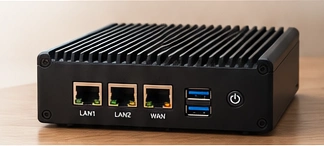
A mini PC with at least two Intel network ports makes an ideal firewall appliance: silent, cheap to run and fast enough for gigabit speeds. If the installer refuses to start, disable Secure Boot, and after the first reboot confirm that the cabled ports match the WAN and LAN assignment.
- Boot from the USB installer.
- Select the intended installation disk.
- Remove the USB drive before rebooting.

Install on Proxmox
Run OPNsense in a virtual machine on Proxmox VE for a flexible lab or production setup.
Give the virtual machine at least 3 GB of RAM and 8 GB of disk, attach the DVD ISO, and place the WAN and LAN sides on separate virtual bridges. If traffic behaves strangely afterwards, check the hardware offloading settings first.
- Upload the extracted DVD ISO.
- Attach it to the virtual optical drive.
- Assign WAN and LAN connections.

Your first boot
After rebooting, use the console menu to identify your interfaces.
The console menu is your safety net. From it you can assign interfaces, set the LAN address, reset the admin password and restore a configuration backup, even when the web interface is unreachable.

Identify WAN and LAN
Confirm which port is WAN (Internet) and which is LAN (local network).
Swapped ports are the most common first-install mistake. Identify each port by its MAC address, or by watching which link light goes out when you unplug a cable, and only then connect the internet line.
- Identify the cable leading to your upstream router.
- Match local ports to console assignments.
Open the web interface
Access the OPNsense web interface from a device on your LAN.
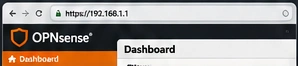
By default it answers on the LAN at 192.168.1.1 over HTTPS. Sign in as root with the password opnsense on a fresh install, and change it when the wizard asks.
- Open the LAN address shown on the console.
- Sign in from your local network.
- Follow the setup wizard.
Run the setup wizard
Use the built-in wizard to configure the basics of your firewall.
The wizard asks for the hostname, domain, DNS servers, time zone, the WAN connection type and the LAN address, and it sets a new admin password. Have your ISP details ready, because the right WAN type (DHCP, PPPoE or static) depends on how your connection is delivered.
- Set hostname, DNS and time zone.
- Configure your WAN and LAN settings.

Back up your configuration
Save a backup of your working configuration so you can restore it later.
The backup is a single config.xml file that you download from System, Configuration, Backups. Keep a copy away from the firewall itself, and take a fresh one before every firmware update or major change so you always have a way back.
- Open System → Configuration → Backups.
- Download the configuration file.
- Keep the backup in a secure location.
Troubleshoot startup
Fix common issues if OPNsense fails to boot or is unreachable.
Work by symptom rather than by guesswork. A machine that will not boot, an installer that freezes and a web interface that will not load each have different causes and known fixes.
OPNsense doesn’t boot
Remove the installer and select the installed disk in the boot menu.
I can’t access the web interface
Connect to LAN and use the address printed on the console.
The wrong port is used for WAN/LAN
Review interface assignments at the local console.

Check your version
Review the release notes for your installed edition.
The Community Edition receives two major releases a year, in January and July, with smaller updates in between. Look for them under System, Firmware, Status, and always back up your configuration before applying one.
⬡ OPNsenseCommunity EditionBusiness EditionRelease notes
Choose your next project
Take OPNsense further with projects for your home lab or small office.

Frequently asked questions
Quick answers to the questions new OPNsense users ask most, from choosing an image to recovering access. Longer step-by-step help lives in the linked guides.
What is OPNsense?
OPNsense is a free, open source firewall and routing platform based on FreeBSD. It turns a standard 64-bit computer or virtual machine into a dedicated network firewall that you manage from a web interface in your browser.
Is OPNsense free to use?
Yes. The Community Edition is completely free for home and business use, including all updates. A separate Business Edition with a paid subscription exists for companies that want commercial support and a more conservative update path.
Which installer image should I download?
Choose by how you will watch the installation. Use vga with a monitor and keyboard, dvd for a virtual machine or an optical disc, serial for headless hardware with a serial console, and nano for a preinstalled embedded system. Our image comparison guide walks through each case.
What hardware do I need to run OPNsense?
Any 64-bit x86 computer with at least a dual-core 1 GHz CPU, 3 GB of RAM and two network ports can run it. With a VPN or intrusion prevention, 4 to 8 GB of RAM and an SSD are a better fit.
Can I run OPNsense in a virtual machine?
Yes. Create a virtual machine with at least 3 GB of RAM and 8 GB of disk, attach the dvd ISO, with WAN and LAN on separate virtual networks. It runs well on Proxmox VE, KVM, VMware and VirtualBox.
How do I know my download is genuine?
Compare the SHA256 checksum of your file with the official checksum file published with the release, and for stronger proof verify the OpenSSL signature as well. Both files are linked beside the download button on this page, and our verification guide explains each step.
How do I make a bootable OPNsense USB drive?
Decompress the downloaded .bz2 image and write the raw image file to the whole USB drive with an image writer. Do not copy the file onto the drive in a file manager, because that does not create bootable media.
What are the default address and passwords?
A fresh system answers on the LAN at 192.168.1.1. Sign in to the web interface as root with the password opnsense, or start the installer at the console as installer with the same password, and change the admin password during setup.
What is the nano image for?
The nano image is a complete OPNsense system that is already installed. Write it to a USB stick, SD or CF card of at least 4 GB and boot from it: ideal for small embedded hardware. It keeps its logs in a RAM disk, so they do not survive a reboot.
How do I update OPNsense safely?
Take a configuration backup first, read the release notes, then run the update from System, Firmware, Status in the web interface. Smaller updates install in minutes, while a major release deserves a maintenance window and a tested backup.
How do I back up my configuration?
Open System, Configuration, Backups in the web interface and download the config.xml file. Store it somewhere other than the firewall, and take a fresh backup before every update or big change. The same page restores a backup later.
What settings does the serial console need?
Use 115200 baud with 8 data bits, no parity and 1 stop bit. Choose the serial installer image for headless hardware, connect the console cable before powering on, and you can watch the whole boot and installation.
Does OPNsense include a VPN server?
Yes. WireGuard and OpenVPN are built in, so phones and laptops can reach your home or office network securely from anywhere. WireGuard is the simpler choice for most people: it needs an instance, a peer and one firewall rule.
Can OPNsense detect intrusions?
Yes. The Suricata intrusion detection system is built in. Start in detection mode on the WAN interface, review the alerts, then switch to prevention mode when ready. Prevention mode requires hardware offloading to be switched off.
I cannot open the web interface. What should I check?
Confirm your computer is on the LAN side with an address in the 192.168.1 range, then open https://192.168.1.1 and accept the certificate warning. If it still fails, the console menu can reset the LAN address and the admin password.
How often is OPNsense updated?
The Community Edition gets two major releases a year, in January and July, with smaller updates in between that fix bugs and security issues. The current series is 26.7, and your firewall lists available updates under System, Firmware, Status.